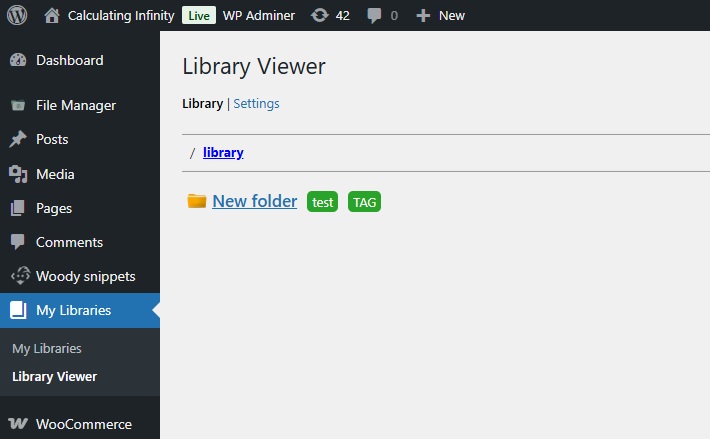
> What is a Library Viewer admin page
A Library Viewer admin page is a registered WordPress admin menu page that allows you to display a library with folders and files in the backend, just like in the frontend.
You can register as many Library Viewer admin pages as you want. Examples are shown below.
By default, the plugin registers a Library Viewer admin page under the Media menu and the Settings tab of this page can only be accessed by users with the manage_options capability.
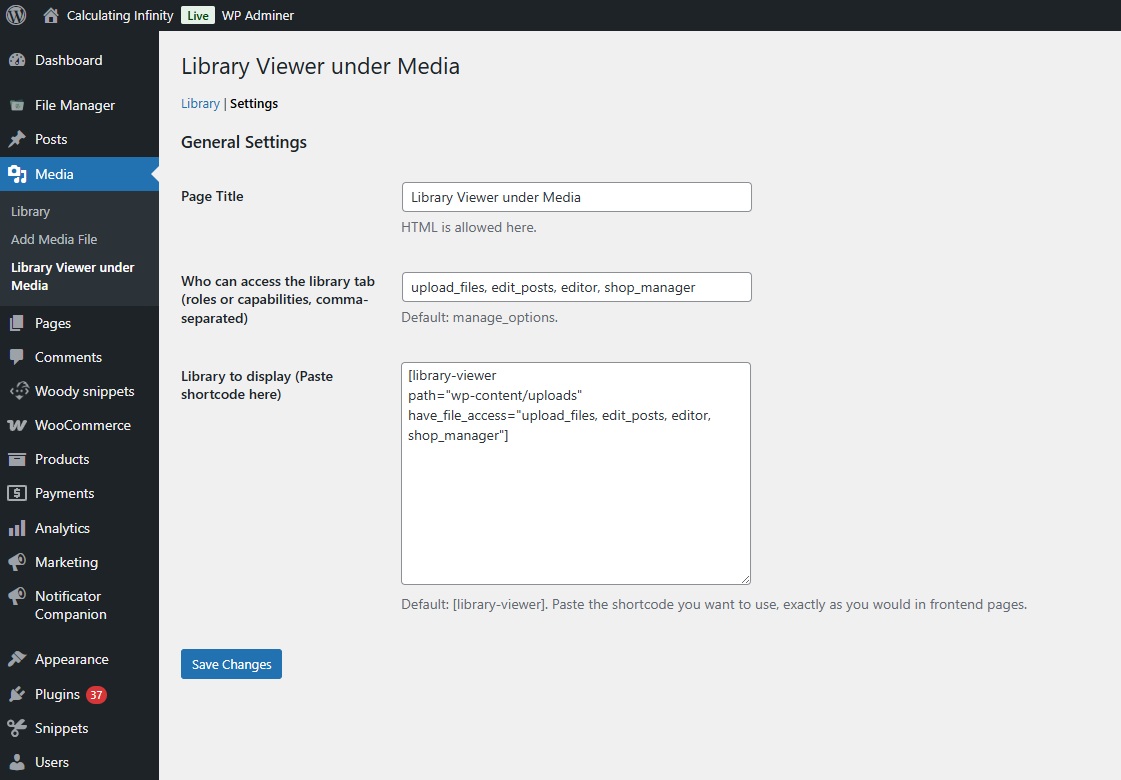
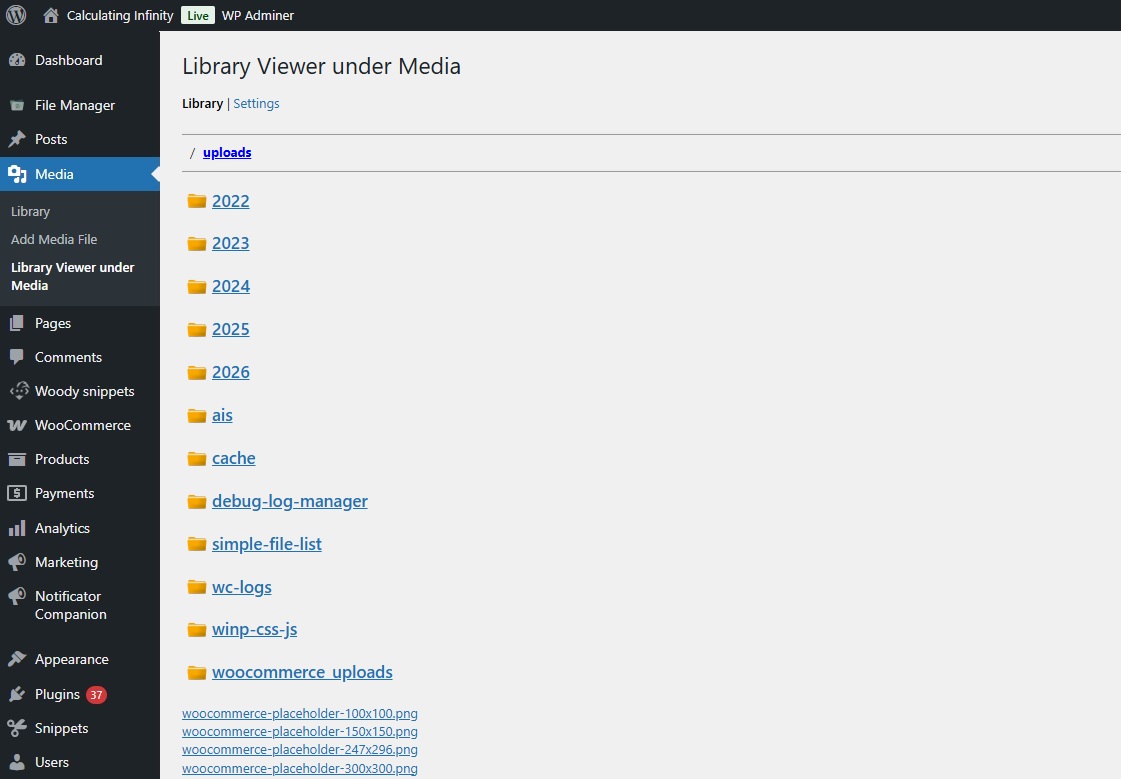
> Setup default Library Viewer admin page settings
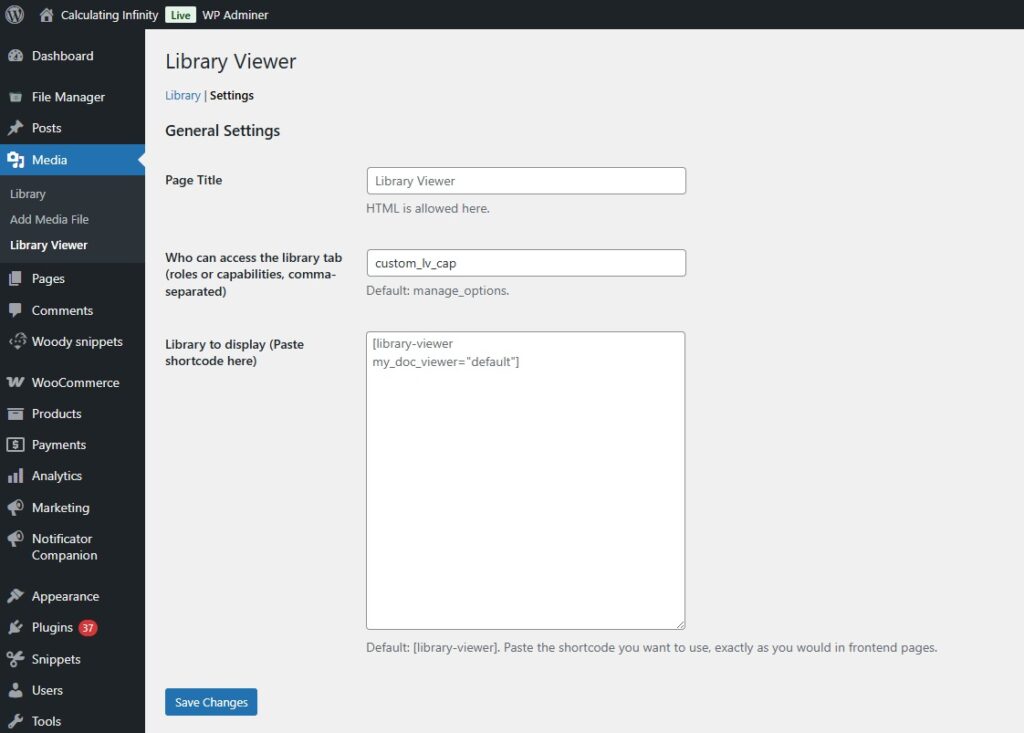
- Page Title: The page and menu title of the Library Viewer admin page. If you leave it empty default title is: Library Viewer.
- Who can access the library tab: The library tab is accessible to users whose role or capability matches the values defined in the “Who can access the library tab” setting.
In this field you can enter comma-separated roles and/or capabilities. - Library to display (Paste shortcode here): Here you can write or paste the shortcode that will be executed and displayed in the Library tab. For shortcode parameter documentation, see the link below.
> How to change manage capability of default Library Viewer admin page
By default, the settings page of Library Viewer admin page can only be accessed by users with the manage_options capability, which is granted to administrators by default.
You can filter this capability using the lv_default_admin_page_manage_caps hook. You can pass either capabilities or user roles as an array.
Example below:
add_filter('lv_default_admin_page_manage_caps', function ($caps) {
	return ['shop_manager', 'manage_options'];
});
Doc1: lv_default_admin_page_manage_caps filter Doc
Doc2: How to add PHP Hooks in your WordPress Site
> How to remove default Library Viewer admin page
You can remove the current instance of Library Viewer admin page using the following hook:
add_action('init', function () {
  remove_action('init', ['Library_Viewer_Init', 'register_library_viewer_media_page'], 5);
}, 2);> How to register a new Library Viewer admin page under an existing WP core page
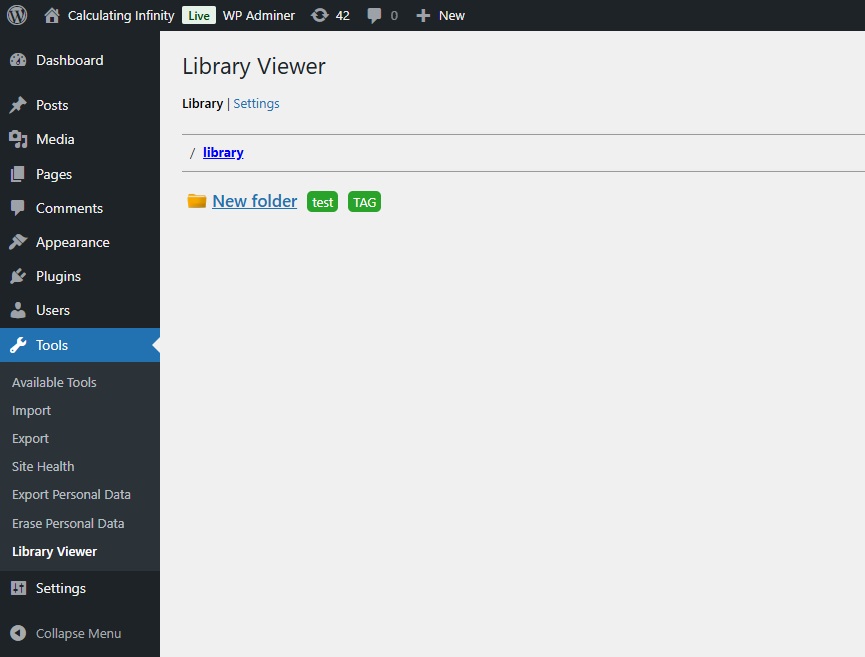
If you want to add a new Library Viewer admin page under an existing WP core page such as Tools Page (tools.php), you can use the following hook:
// EXAMPLE 1: Library Viewer under a core WordPress admin menu
// Example here: Tools core page (tools.php)
// IMPORTANT: Initialize the Library_Viewer_Admin_Page instance on the init hook with priority 2-5.

add_action('init', function () {

  new Library_Viewer_Admin_Page(
	'tools.php', // parent_menu_slug (pass exstant top-level page)
	'new-tools-library', // menu_slug
	__('Library Viewer', 'library-viewer'), // title
	['administrator', 'editor', 'manage_options'] // manage_caps
  );

}, 2);
Doc: How to add PHP Hooks in your WordPress Site
> How to register a new Library Viewer admin page as top-level menu item
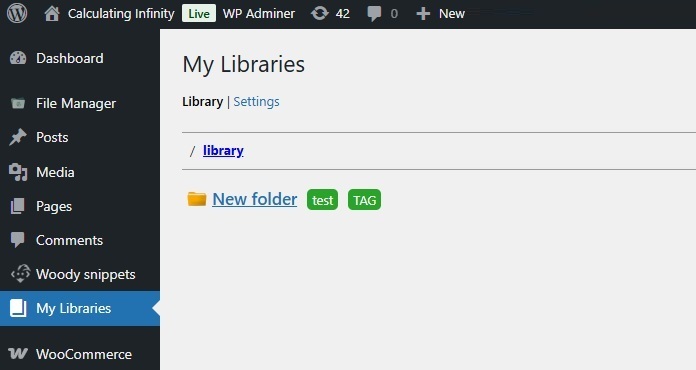
To add a top-level menu item in the WordPress admin dashboard and attach a Library Viewer admin page to it, use the following hook:
// EXAMPLE 2: Library Viewer as top-level menu item
// Example here: New top-level page (admin.php?page=my-libraries)
// IMPORTANT: Initialize the Library_Viewer_Admin_Page instance on the init hook with priority 2-5.

add_action('init', function () {

  // Create top-level menu if it does not already exist
  add_menu_page(
	__('My Libraries', 'your-textdomain'), // page title
	__('My Libraries', 'your-textdomain'), // menu title
	'manage_options', // capability
	'my-libraries', // menu slug
	'__return_empty_string', // callback
	'dashicons-book',
	30
  );


  // Example: Library Viewer Admin Page under custom top-level menu
  new Library_Viewer_Admin_Page(
	'admin.php?page=my-libraries', // parent menu slug (used when attaching to a top-level page)
	'my-libraries', // menu_slug
	null, // title, null: takes default value
	['administrator', 'editor', 'manage_options'] // manage_caps
  );

}, 2);
Doc: How to add PHP Hooks in your WordPress Site
> How to register a new Library Viewer admin page under a custom top-level menu item
If you want to add a new Library Viewer admin page under an already registered admin page, you can use the following hook:
// EXAMPLE 3: Library Viewer under a custom top-level menu item
// Example here: admin.php?page=my-libraries page top-level menu item, registered previously
// IMPORTANT: Initialize the Library_Viewer_Admin_Page instance on the init hook with priority 2-5.

add_action('init', function () {

  // Example: Second page under same top-level menu 'my-libraries'
  new Library_Viewer_Admin_Page(
	'my-libraries', // parent_menu_slug (pass only the 'page' GET parameter)
	'my-library2', // menu_slug
	__('Library Viewer', 'library-viewer'), // title
	['administrator', 'editor', 'manage_options'] // manage_caps
  );

}, 2);
Doc: How to add PHP Hooks in your WordPress Site