- To install the CRM in your browser, you need to use a Chromium Browser such as Chrome or other browser that can install extension like User JavaScript and CSS
- So, In your browser, you need to install the User JavaScript and CSS extension.
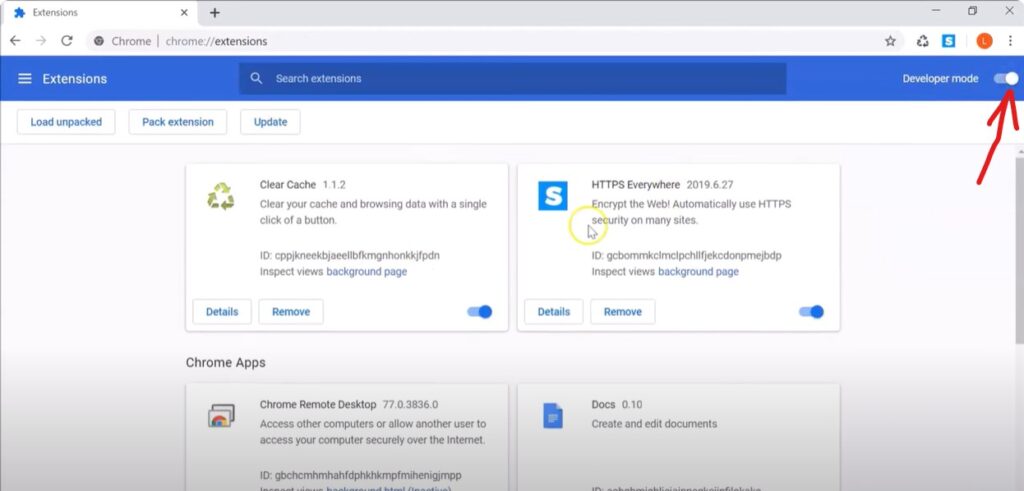
- In your browser, you need to enable Developer Mode.
Instructions: https://support.google.com/chrome/thread/155712634/where-do-i-go-to-turn-on-the-chrome-developer-mode?hl=en
Screenshot:
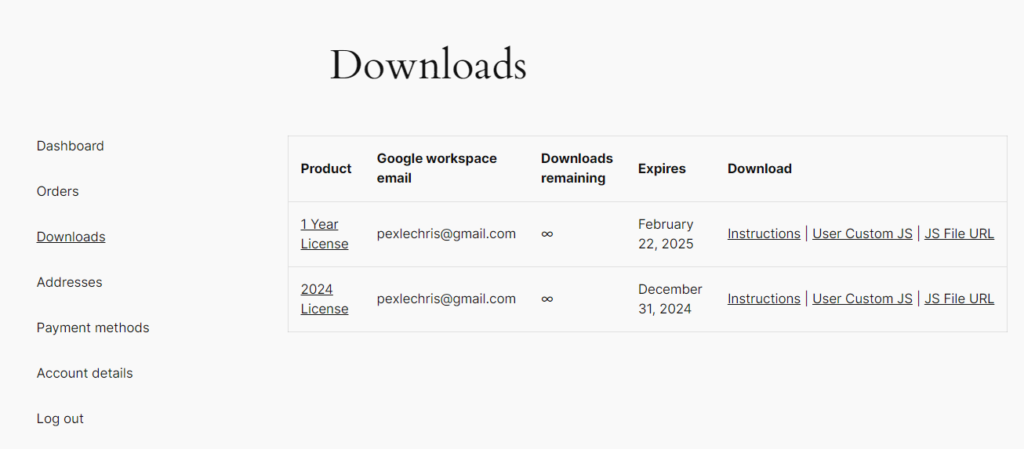
- Copy the JS File URL from your account’s Downloads
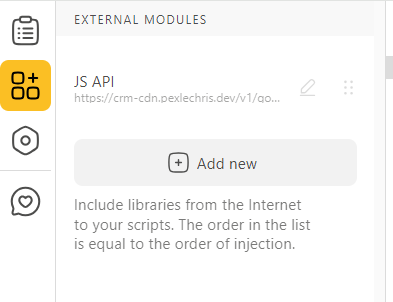
- Go to User JavaScript and CSS extension’s settings
- Add an external module using the JS File URL that you copied before, as a new module
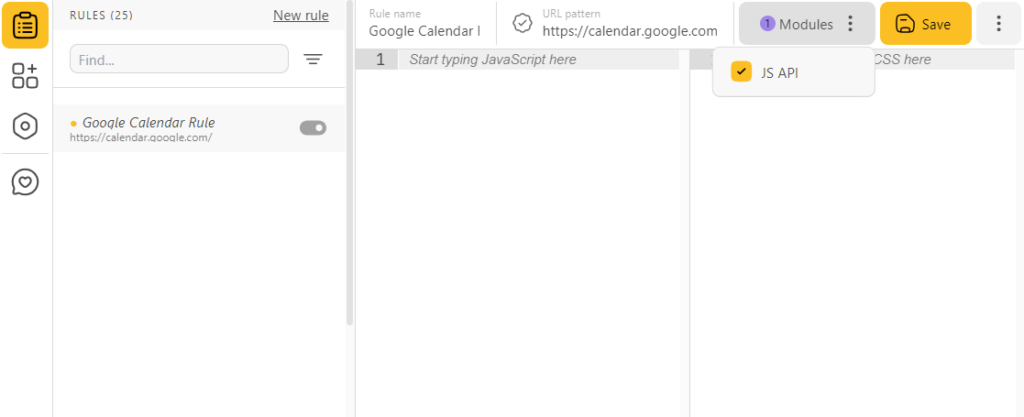
- Add a new rule with URL Pattern “https://calendar.google.com/”, check the module that you add before from the 3 dots and click Save
- Go to search page and start Using the Pexle CRM
https://calendar.google.com/calendar/u/0/r/search?q=%20&pex - You can also save the above link to your browser’s bookmarks!